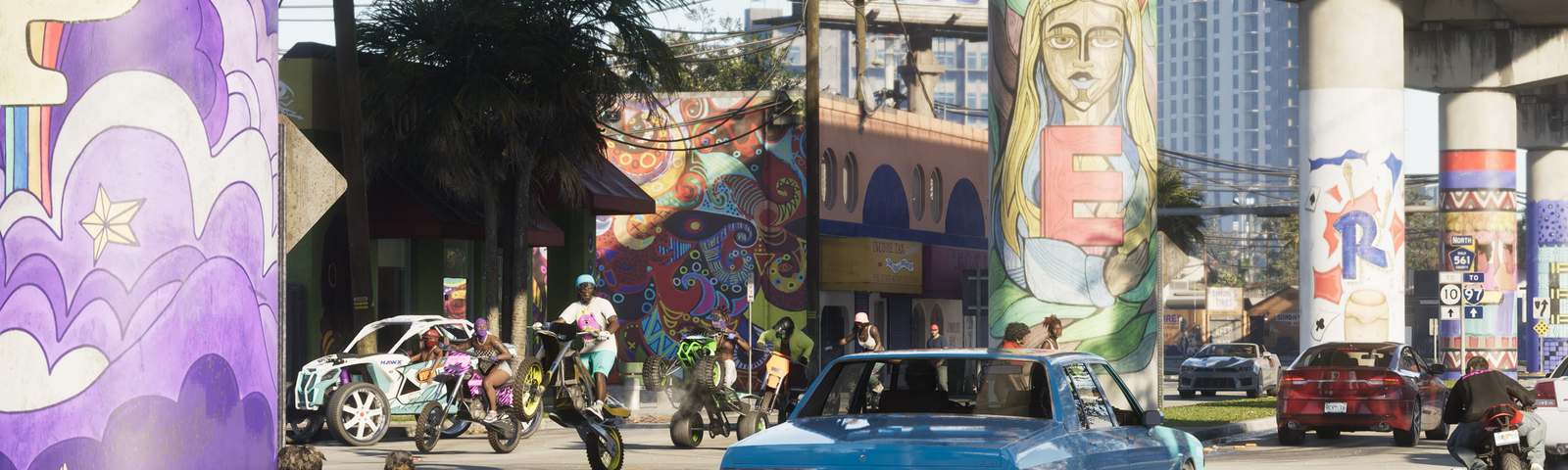
Image: Rockstar Games
Get set up: Xbox to OneDrive to the map
Do this once and every clip and screenshot you take in GTA 6 will save to your OneDrive by itself, ready for Capture Map.
Don't worry, it's easy.
It's just 12 quick steps, each spelled out so you never have to guess what to press. Most are a single button, and the whole thing takes about 10 minutes.
The short version: update your Xbox, turn on Automatic uploads › To OneDrive, take a test clip, and check it shows up in OneDrive. That's really it.
0 of 12 done
Part A · Get ready
Two quick checks before you start.
- 1
Check which account your Xbox uses
Press the Xbox button (the glowing logo), go to Profile & system and note your gamertag. The email under Settings›Account is your Microsoft account. Use this same account everywhere below.
- 2
Get OneDrive on your phone
Install the free Microsoft OneDrive app (App Store or Google Play) and sign in with that same account. On a computer, onedrive.com works too.
Tip: Every Microsoft account includes 5 GB of free OneDrive storage.
Part B · Turn on automatic uploads
The important part. You only do it once.
- 3
Update your Xbox
Press the Xbox button, go to Profile & system›Settings›System›Updates and install any update you see.
Tip: Keep your Xbox online: uploads only happen while it's connected.
- 4
Open the capture settings
Go back and open Settings›Preferences›Capture & share
- 5
Set clips to 1080p
Under Game clip resolution, choose 1080p SDR.
Tip: 4K and HDR clips may not upload by themselves, so 1080p is the safe choice.
- 6
Turn on uploads to OneDrive
Open Automatic uploads and choose To OneDrive. If it asks you to sign in, use the same Microsoft account.
Tip: Xbox says saving screenshots on console needs Xbox Game Pass. Clips don't.
Part C · Test it
Make sure it works before GTA 6 comes out.
- 7
Record a test clip
Start any game. Press the Xbox button, then X to save the last 30 seconds. (On the newer controller, just hold Share.)
- 8
Take a test screenshot
Press the Xbox button, then Y. (Or press Share once.)
Tip: Leave the Xbox on and online for about 5 minutes so the uploads can finish.
Part D · Find them in OneDrive
Same Microsoft account as your Xbox.
- 9
Open My files
In the OneDrive app or on onedrive.com, open My files
- 10
Find your captures
Screenshots are in Pictures›Xbox Screenshots and clips are in Videos›Xbox Game DVR. See your test clip? You're done!
Tip: Not there? Look in the main Pictures and Videos folders, wait 10 more minutes, then see Troubleshooting below.
Part E · Save your older clips (optional)
Xbox may delete captures from the Xbox network after 90 days.
- 11
Open the Captures app
Press the Xbox button and go to My games & apps›See all›Apps›Captures
- 12
Upload them to OneDrive
Select Manage, pick your captures (or Select all), then choose Upload to OneDrive.
Tip: This copies them; nothing is deleted from your Xbox. Big batches go faster in smaller groups.
After launch: on Capture Map Coming soon
These open once the real map is rebuilt. Your account will simply be your Microsoft sign-in: no new password.
- 13
Sign in with Microsoft
Open Capture Map and press Sign in with Microsoft, using the same account as your Xbox. We never see your password.
- 14
Approve access
Microsoft shows exactly what we ask for: to read your Xbox captures and keep a small pins file in our own folder in your OneDrive.
- 15
Let us find your captures
We find your Xbox folders automatically and show your GTA 6 captures in a tray beside the map.
- 16
Drop them on the map
Drag each capture to where it happened (on a phone: tap the capture, then tap the map). Zoom out and they stack up with a count.
- 17
Or let AI suggest a spot (we're trying)
If our automatic placement works, it suggests a spot for each capture; you accept it or move it. We can't promise this yet.
Troubleshooting
I don't see “Automatic uploads” or “To OneDrive”
Install the latest Xbox update (step 3), restart the console, and check again. The feature may not be available in every region.
Uploads never show up in OneDrive
Check you're signed in to OneDrive with the same account as your Xbox, that OneDrive isn't full, and that the Xbox stayed online. Try a smaller batch, check the Xbox status page, and try again later.
Screenshots show up twice
That's the HDR copy. Xbox's suggested fix: turn off Allow HDR10 in Settings › General › TV & display options › Video modes, or just ignore the duplicates.
4K or HDR clips don't upload
Set Game clip resolution to 1080p SDR (step 5). Some games force 4K HDR clips; turning off HDR10 in Video modes gives you longer, smaller clips.
I play on a child account
Family settings can block OneDrive. A parent can allow it in the Xbox Family Settings app.
I'm on PlayStation
Sorry: PlayStation doesn't give websites a way to read your captures, so Capture Map is for Xbox only for now.
Menu names from Xbox Support ("Back up your game captures" and "Capture game clips and screenshots", checked 16 Nov 2026). Xbox can rename menus in updates; if something looks different, the closest match is usually right. Your progress ticks reset when you leave the page: nothing is saved.